
Brand kit
Ming Apothecary brand kit
Logos, palette, typography, imagery and a step-by-step guide for the Shopify store.
Interim logo This wordmark is a placeholder until Lauren’s final mark is ready.
Taglines · choice pending
Primary
The ancient art of nourishing life
Alternative
Rooted in tradition, created for well-being
Supporting lines from the brand document: “Nourish the Essence. Illuminate the Spirit.” · “Ancient Wisdom. Living Medicine.”
Logo
Wordmark & mark
明 (Ming, “bright”) in a thin gold ring, with MING APOTHECARY in serif capitals. SVG masters are in brand-kit/logos/svg/.
Horizontal, dark, transparent
ming-logo-horizontal-dark-transparent-2400.png
Horizontal, light, transparent
ming-logo-horizontal-light-transparent-2400.png
Stacked, dark, transparent
ming-logo-stacked-dark-transparent-1200.png
Stacked, light, transparent
ming-logo-stacked-light-transparent-1200.png
Square 1024, ivory
ming-logo-square-ivory-1024.png
Square 1024, jade
ming-logo-square-jade-1024.png
Square 512, ivory
ming-logo-square-ivory-512.png

Mark 1024, dark
ming-logo-mark-dark-transparent-1024.png

Shopify header logo, 600 px
ming-logo-shopify-header-dark-600.png

Favicon 512 (Shopify scales to 32)
ming-favicon-512.png
Palette · Imperial Jade
Jade, gold & ivory
#1F4D43RGB 31, 77, 67Primary: logo, buttons, headings#14362FRGB 20, 54, 47Footer and dark sections#DCE6DERGB 220, 230, 222Soft backgrounds, borders#B08D57RGB 176, 141, 87Accent: logo ring, rules, small caps#F7F2E8RGB 247, 242, 232Alternate background#FCFAF5RGB 252, 250, 245Main background#1E2422RGB 30, 36, 34Body text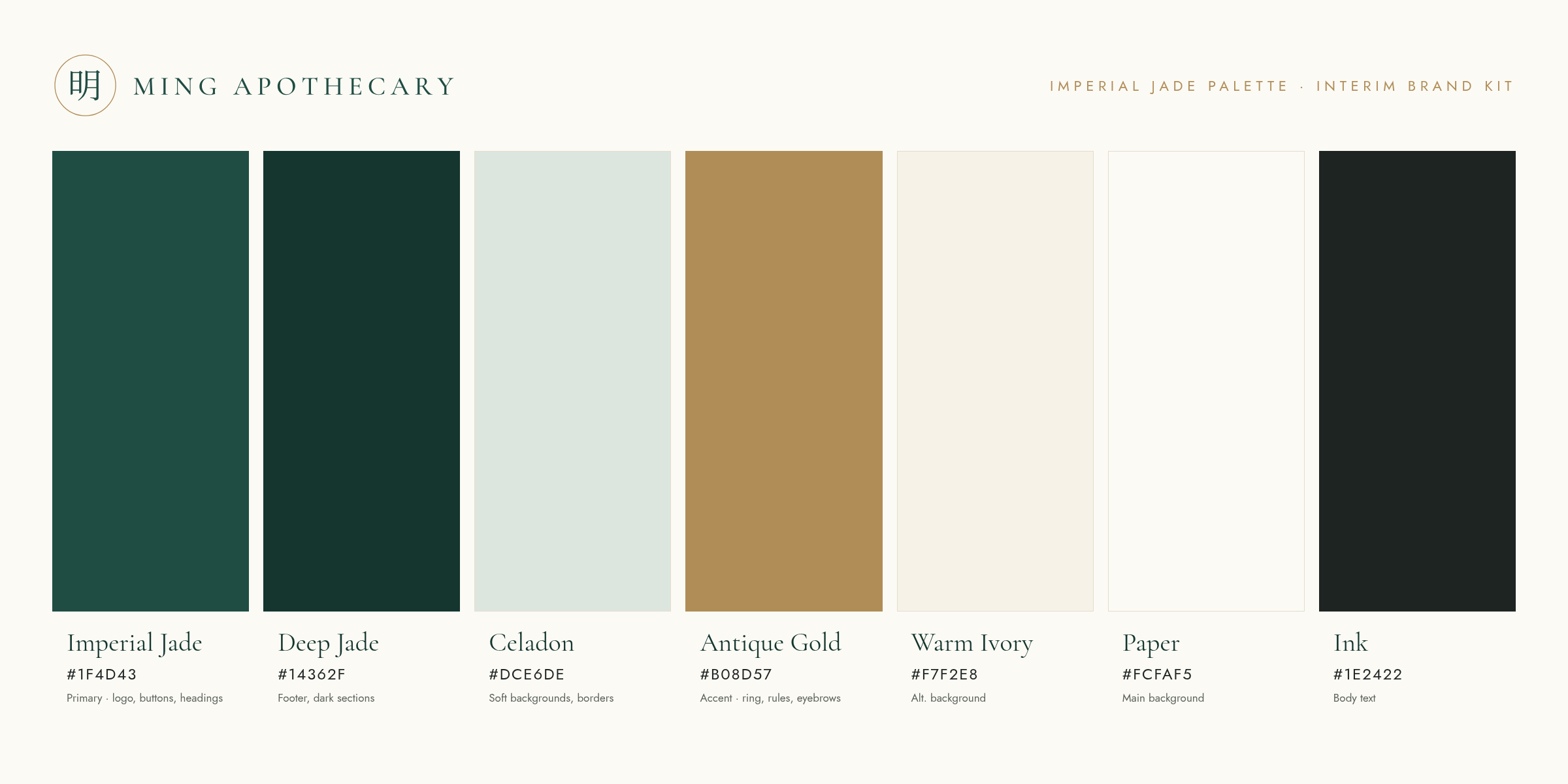
Typography
Cormorant & Jost
Shopify (from Shopify’s font library): headings Cormorant, body Jost or Assistant. Alternatives: Lora headings, or EB Garamond with Figtree.
Website: Cormorant Garamond and Jost, self-hosted (SIL Open Font License).
Aa Cormorant
The ancient art of nourishing life
Aa Jost
Eyebrow · 12 px · .26em tracking
Body copy in Jost at 17 px with generous line height and plenty of white space.
Imagery
Banners, collections & lifestyle
Text-free images, sized for Shopify. Kalalea, ʻōhiʻa lehua, ferns and quiet tea rituals.

Hero banner 2880×1200
ming-hero-kalalea-2880x1200.jpg
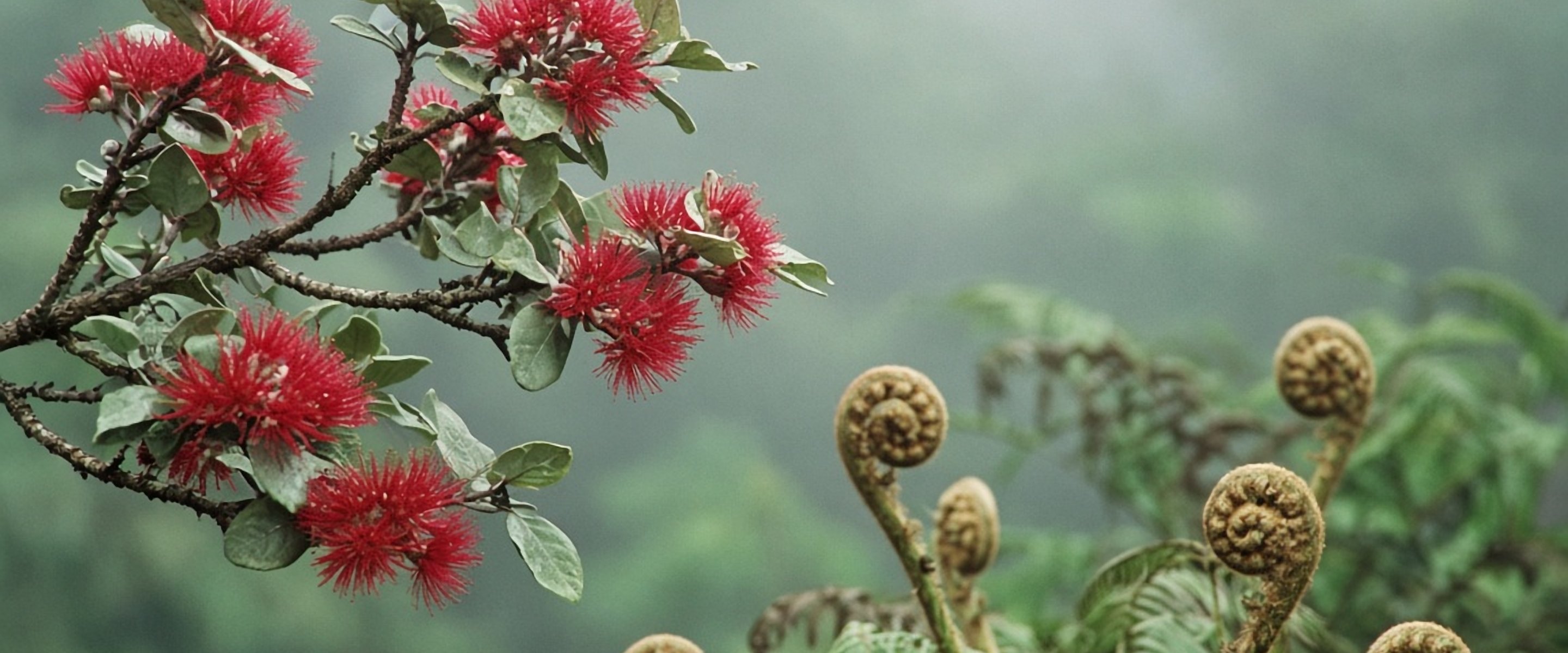
Slide 2880×1200
ming-slide-ohia-fern-2880x1200.jpg

Slide 2880×1200
ming-slide-tea-ritual-2880x1200.jpg

Mobile hero 1080×1350
ming-hero-kalalea-mobile-1080x1350.jpg
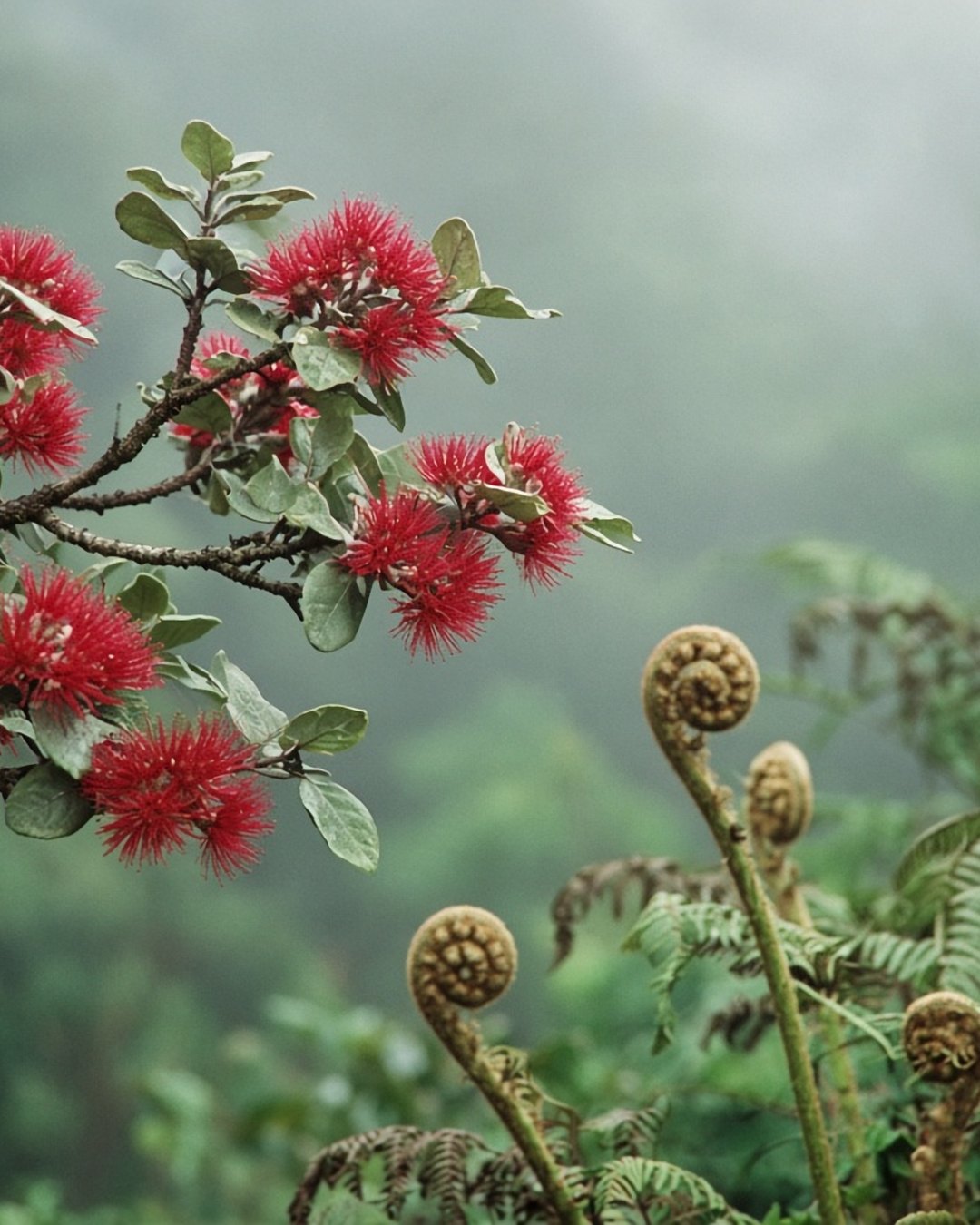
Mobile slide 1080×1350
ming-slide-ohia-fern-mobile-1080x1350.jpg
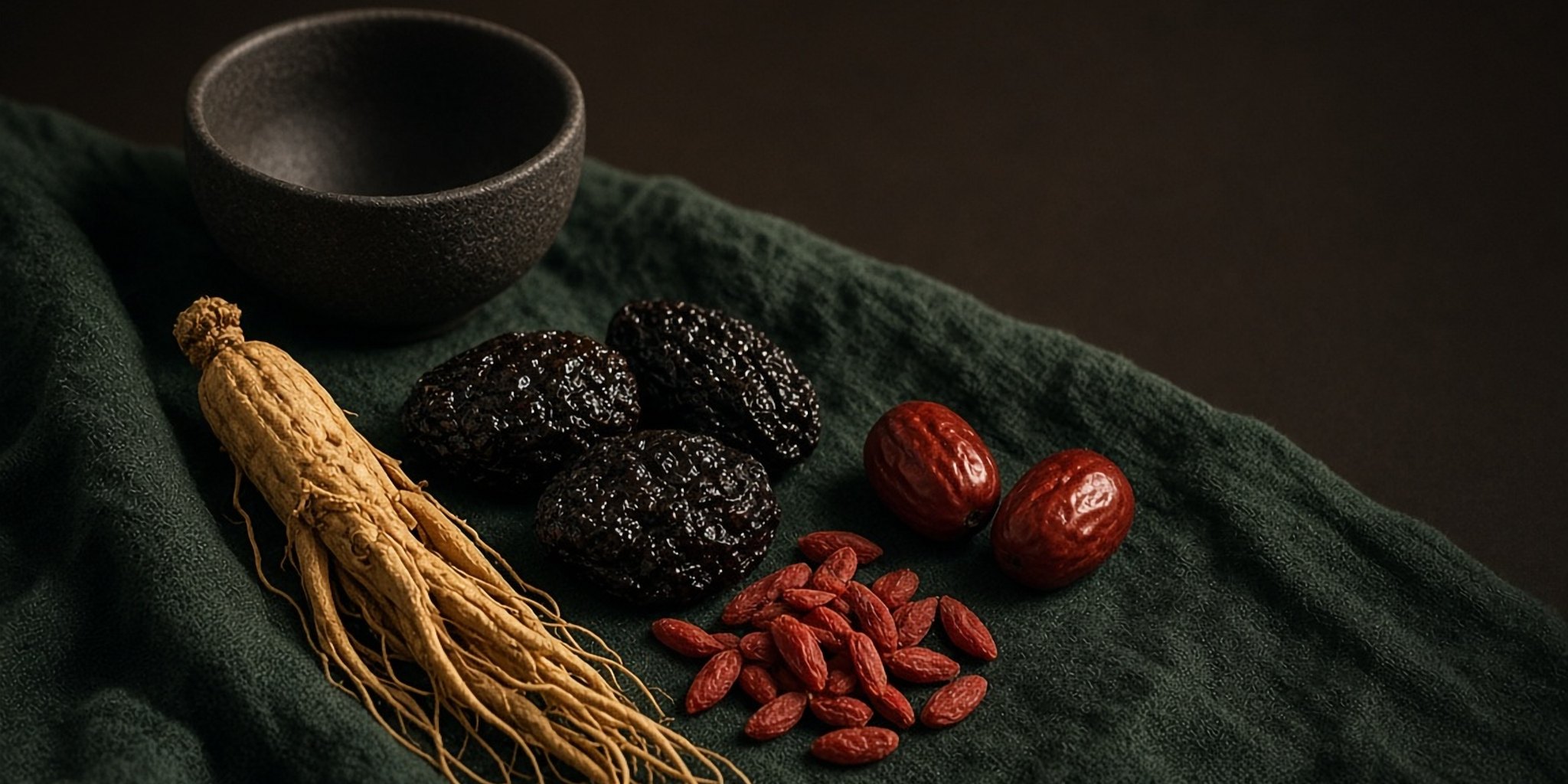
Jing collection 2048×1024
ming-collection-jing-2048x1024.jpg
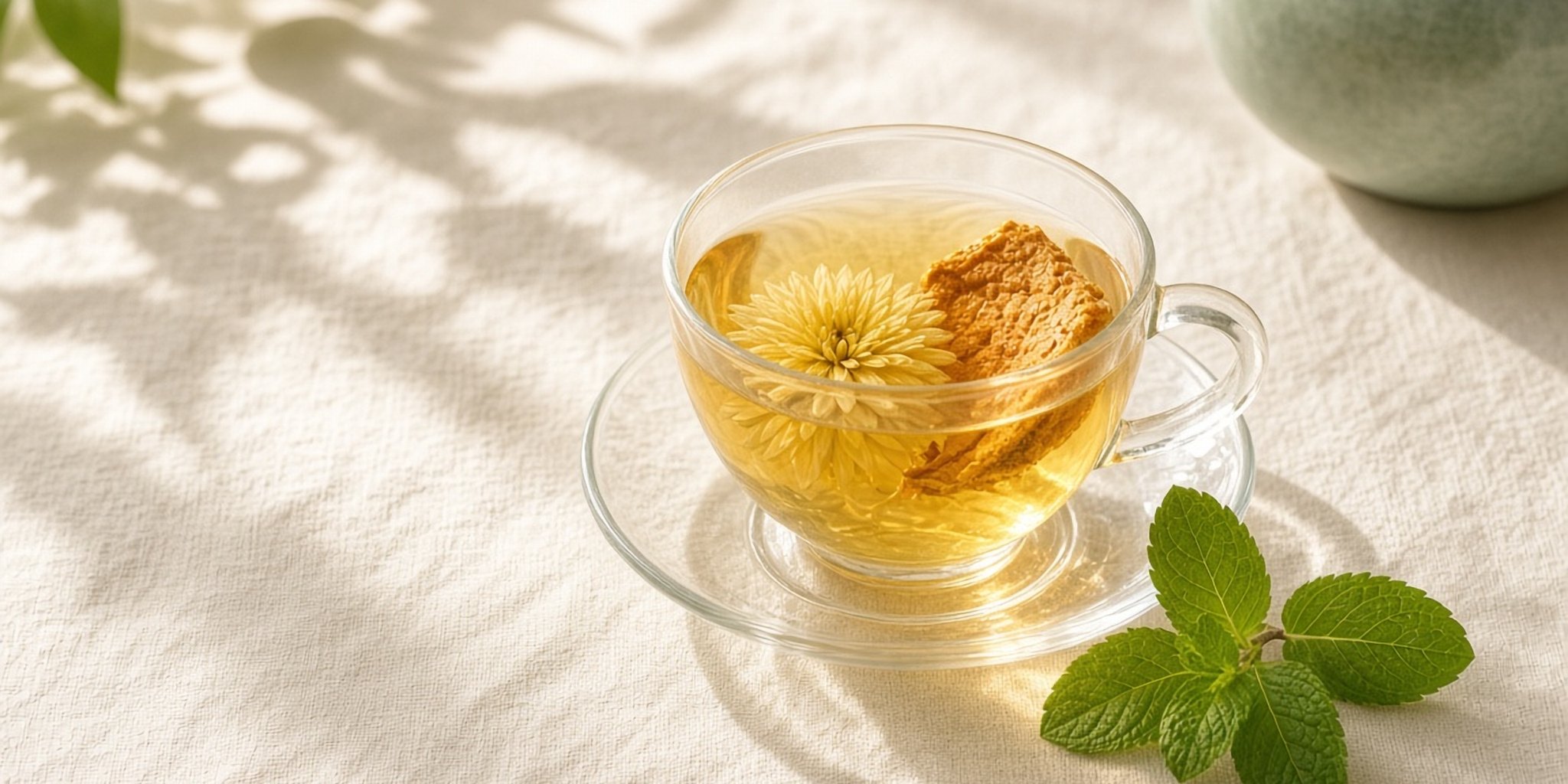
Qi collection 2048×1024
ming-collection-qi-2048x1024.jpg

Shen collection 2048×1024
ming-collection-shen-2048x1024.jpg
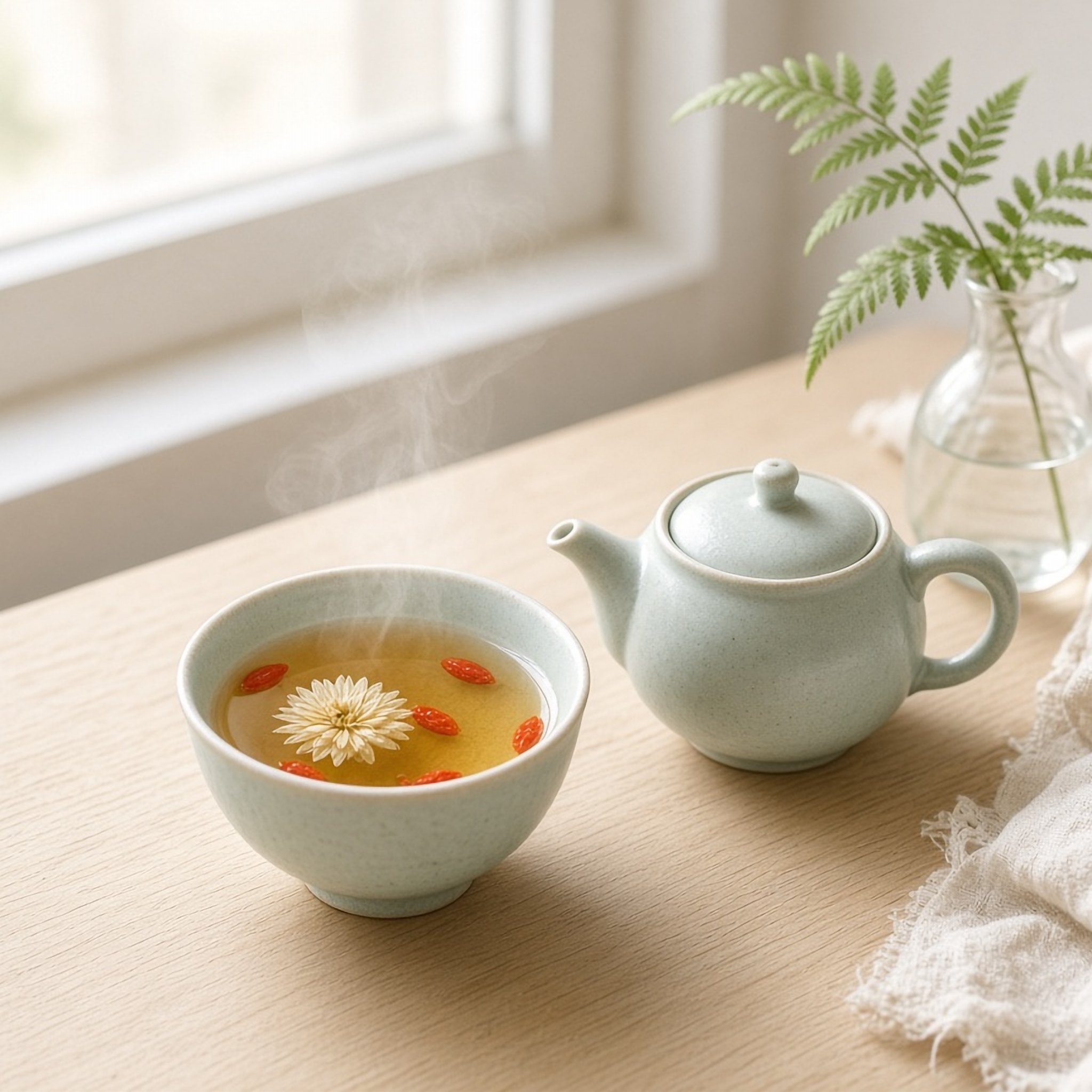
Lifestyle 2048²
ming-lifestyle-tea-ritual-2048.jpg
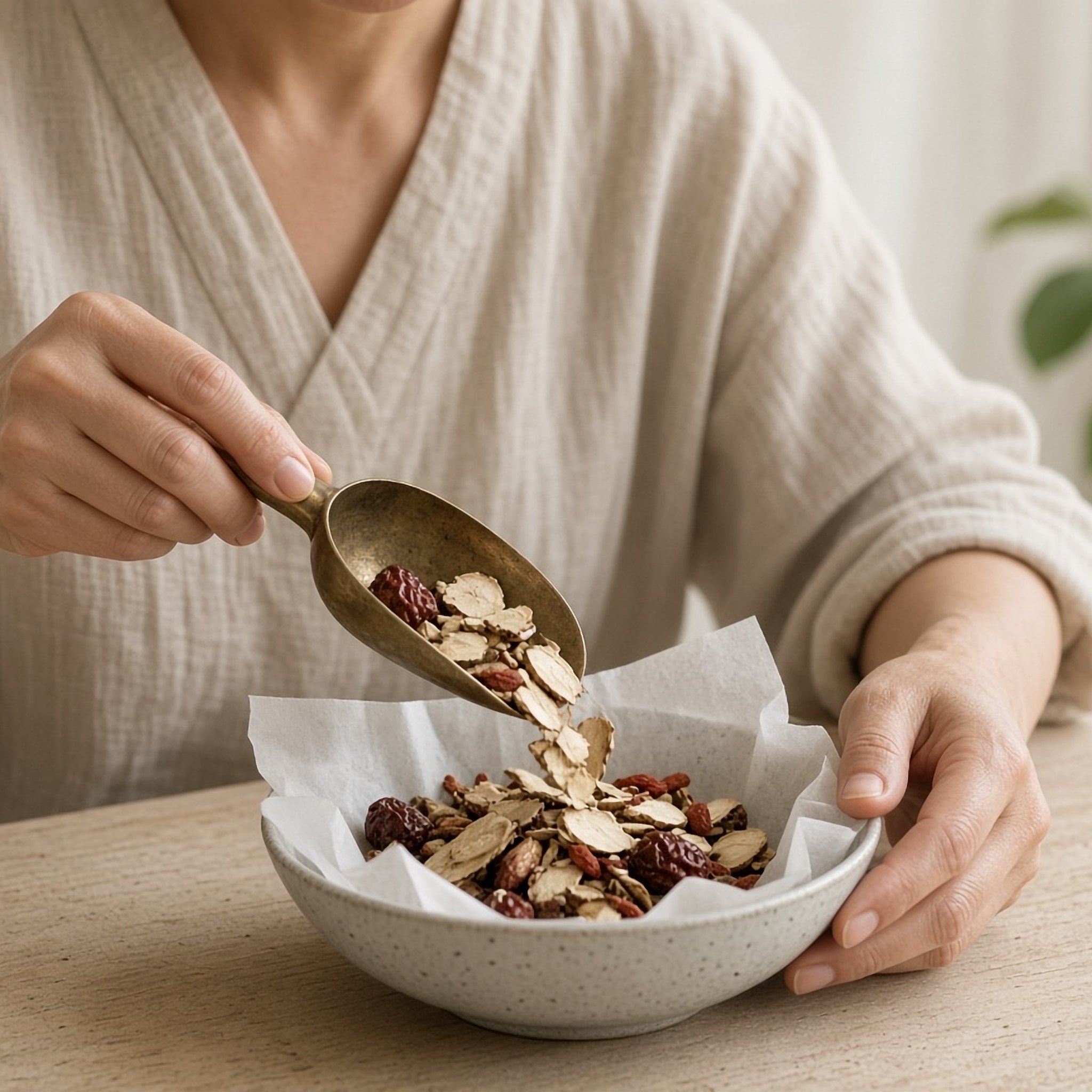
Lifestyle 2048²
ming-lifestyle-hands-herbs-2048.jpg
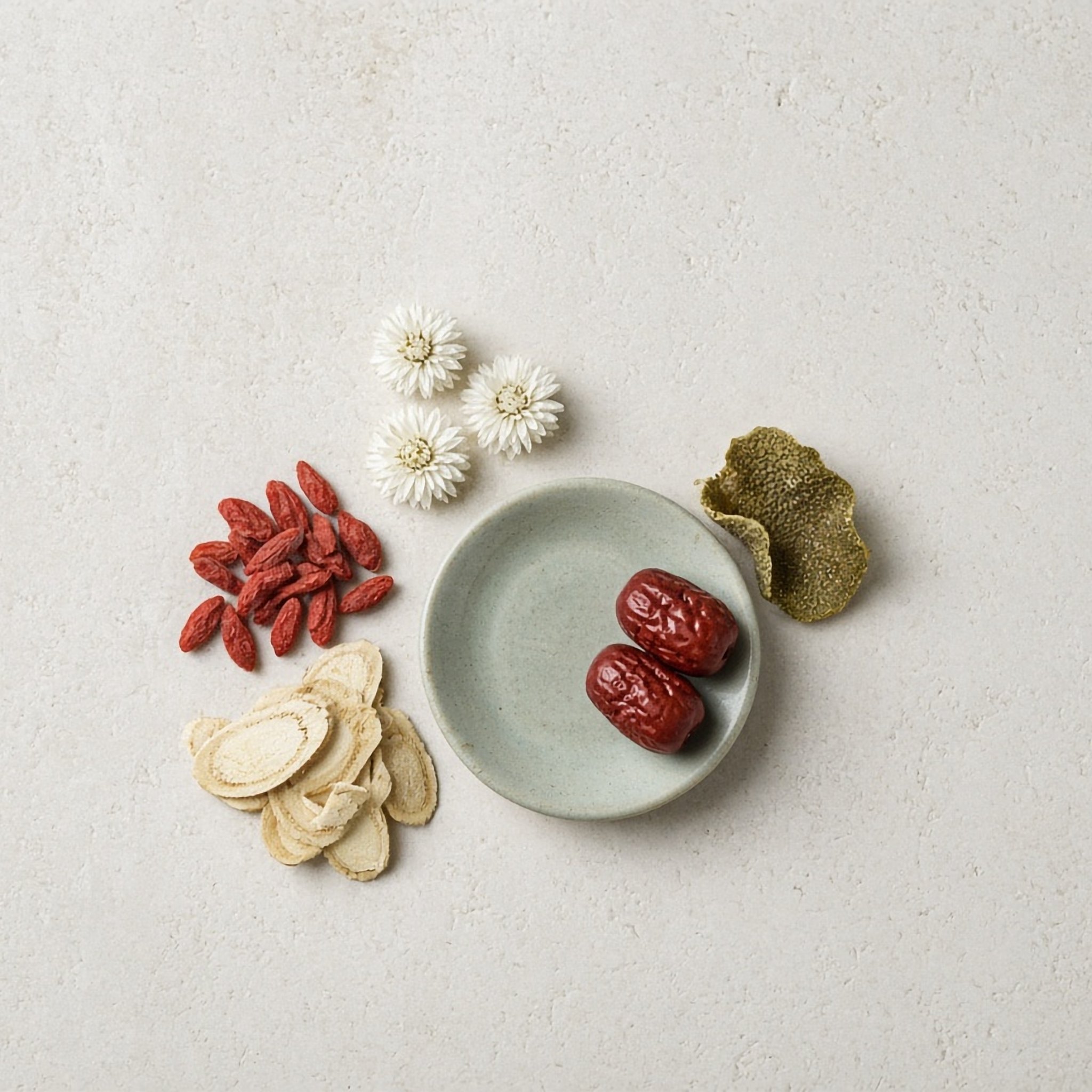
Lifestyle 2048²
ming-lifestyle-herbs-stone-2048.jpg
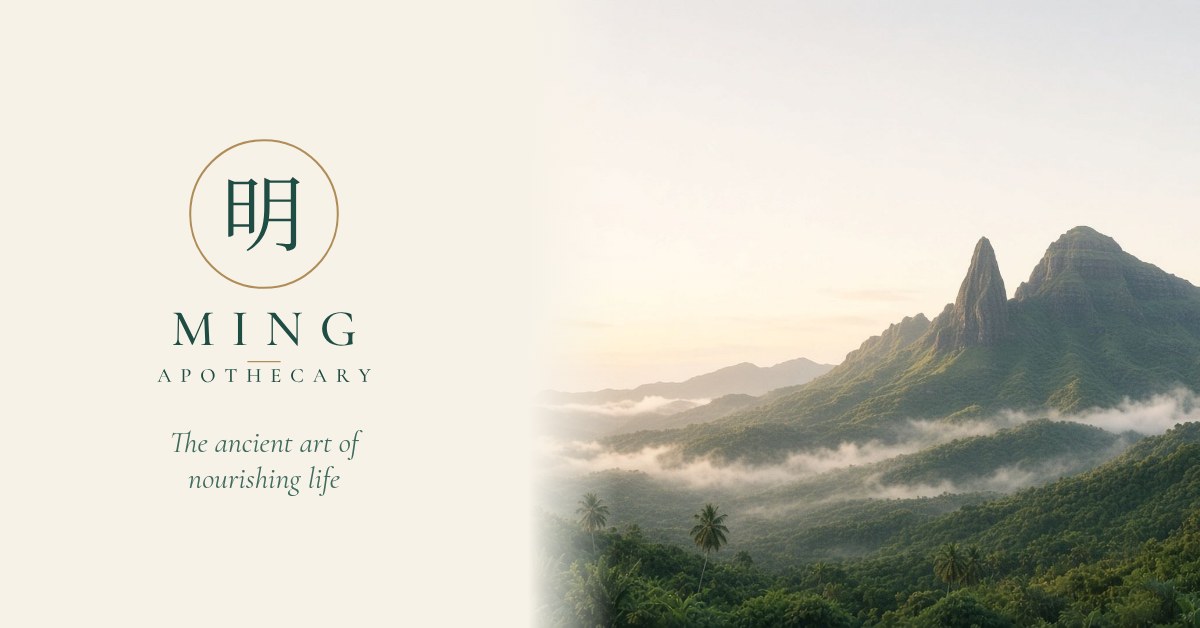
Social sharing 1200×628
ming-social-sharing-1200x628.jpg
Shopify, step by step
Applying the brand to the store
Menu paths checked against Shopify’s Help Center (November 2026). Menus vary slightly by theme and version.
Before you start
Shopify Admin → Online Store → Themes. Your store appears to run Horizon; notes for Dawn and other older themes are included where the menus differ. Tip: click … → Duplicate on your live theme and make changes on the copy, then publish when you’re happy.
Store name
- Settings → General.
- In Store contact details, click the store name.
- Change the Store name field to Ming Apothecary (only if you want the whole store renamed) → Save.
Logo
- Online Store → Themes → Edit theme on the theme you’re changing.
- Click the Theme settings icon (gear) in the left sidebar → Logo.
- Select image → upload logos/ming-logo-shopify-header-dark-600.png (use the light version if your header is dark).
- Add alt text “Ming Apothecary”, adjust the Desktop logo width slider (Shopify displays logos up to 300 px wide) → Save.
Favicon
- Same place: Theme settings → Logo (in some themes, Favicon is its own section).
- Favicon image → Select image → upload favicon/ming-favicon-512.png (Shopify scales it to 32×32 px) → Save.
Colors
Theme settings → Colors.
- Horizon (4.0.0+) uses a colour palette: click + to add each hex below (Imperial Jade #1F4D43, Deep Jade #14362F, Celadon #DCE6DE, Antique Gold #B08D57, Warm Ivory #F7F2E8, Paper #FCFAF5, Ink #1E2422), then assign them in the schemes.
- Dawn and older themes use colour schemes: open a scheme (or Add scheme) and enter hex values. Suggested: Scheme 1: background #FCFAF5, text #1E2422, solid button #1F4D43, button label #F7F2E8, accent #B08D57. Scheme 2 (dark): background #14362F, text #F7F2E8, button #F7F2E8, label #14362F.
→ Save.
Typography
- Theme settings → Typography.
- Under Headings, click Change → search Cormorant → Select.
- Under Body, click Change → search Jost (or Assistant) → Select.
- Optionally raise the heading font size scale (100–150%) to about 120% → Save.
Home page hero: Image banner
- In the theme editor, choose Home page from the template dropdown at the top.
- Click your existing banner, or Add section → search “Image banner”.
- In Image, click Select image → upload banners/ming-hero-kalalea-2880x1200.jpg → Done.
- Where the theme offers a separate mobile image, use banners/ming-hero-kalalea-mobile-1080x1350.jpg.
- Type the headline in the section’s text block, not in the image (Shopify recommends no text baked into banners): “The ancient art of nourishing life” → Save.
Or a Slideshow
- Add section → “Slideshow”.
- Each slide is a Slide block. Use Add block to add more, and Select image on each one: ming-hero-kalalea, ming-slide-ohia-fern, ming-slide-tea-ritual (all 2880×1200).
- Add the slide headings as text, e.g. “Nourish the Essence. Illuminate the Spirit.” → Save.
Collection images
- Shopify Admin → Products → Collections → click the collection (create Jing, Qi and Shen collections first if needed).
- Hover the collection image → Change image (or Add image) → upload collections/ming-collection-jing-2048x1024.jpg (and qi, shen) → Done → Save.
Social sharing image
- Online Store → Preferences.
- In Social sharing image and SEO, click Add image / Change image → upload social/ming-social-sharing-1200x628.jpg.
- You can update the home page title and meta description in the same section → Save.
Products and collections share their own featured images, and an image set in theme code or theme settings takes priority over this one.
Social links (optional)
Dawn: Theme settings → Social media. Horizon: in the footer, use the Social media links block inside the “Policies and links” section.